
VitXi WebRTC can be installed as a Progressive Web App (PWA), allowing you to use it like a native desktop application — complete with its own icon, window, and system notifications.
This improves accessibility, performance, and multitasking while keeping the same real-time communication features available in the browser.
A PWA is a web-based application that can be installed on your desktop directly from the browser.
Once installed.
What Is a Progressive Web App (PWA)? #
A PWA is a web application that behaves like a native desktop or mobile app once installed.
After installation, VitXi will:
- Open in a standalone window (no browser tabs).
- Support system notifications for messages and calls.
- Remain accessible from the desktop, Start Menu, or Dock.
- Auto-update silently whenever a new version is released.
Browser Compatibility #
VitXi WebRTC supports PWA installation on most modern browsers and platforms:
| Browser | Platform | Supported | Notes |
|---|---|---|---|
| Google Chrome | Windows, macOS, Linux |  | Recommended for best experience. |
| Microsoft Edge (Chromium) | Windows, macOS | | Same installation flow as Chrome. |
| Safari | iOS / iPadOS | | Works as a full PWA app when added to the Home Screen. |
| Safari | macOS |  | Limited to “Add to Dock” shortcut, not a full PWA installation. |
| Firefox | All platforms |  | Partial support, lacks install prompt. |
Step-by-Step Installation #
1. Open VitXi WebRTC #
Go to your VitXi WebRTC URL:
https://your-domain/webrtc
If the site is secure (HTTPS), VitXi will automatically display an install banner like this:
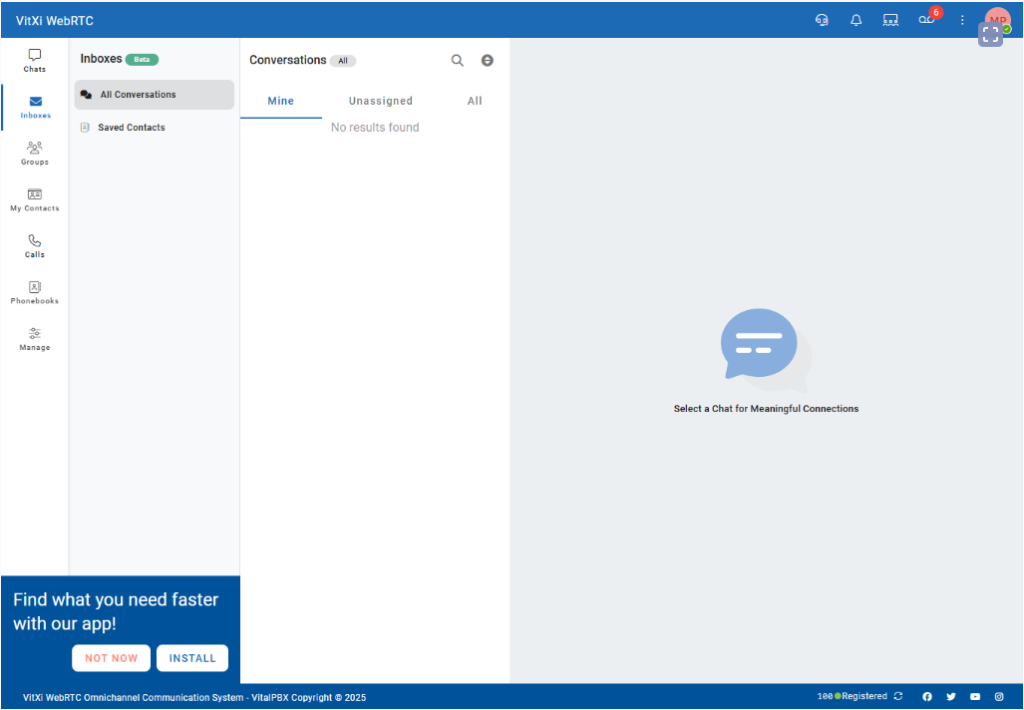
Step-by-step guide to install VitXi WebRTC as a desktop app (PWA) on Chrome, Edge, and iOS. Enable quick access and real-time notifications.
Tip: If you see the “Find what you need faster with our app!” banner at the bottom left — it means your browser supports PWA installation and HTTPS is properly configured.
2. Install Using the Banner #
When the banner appears, simply click Install.
The app will be added instantly to your system and will open in its own window.
- On Windows or Linux → a shortcut appears on the Desktop and Start Menu.
- On macOS → it appears in the Applications folder and Dock.
3. Alternative Manual Installation #
If you dismissed the banner, you can still install VitXi manually:
Google Chrome #
- Click the Install icon
 in the address bar.
 - Select “Install VitXi”.
- The application opens in standalone mode.
Microsoft Edge #
- Click the Install icon
 in the address bar.
 - Confirm installation.
- Edge will create a shortcut automatically.
Safari (iPhone / iPad) #
- Tap the Share icon → Add to Home Screen.
- Name it “VitXi” → Add.
- It now appears as a native icon and supports notifications.
Managing the Installed App #
Once installed, you can:
- Launch VitXi directly from the desktop or dock.
- Stay signed in and receive real-time notifications.
- Benefit from automatic updates — no downloads needed.
- Remove the app via browser → Manage Installed Apps or from your OS.
Notes & Troubleshooting #
- The install banner only appears if:
- The site is served over HTTPS
- The browser supports PWAs
- If you closed the banner accidentally, refresh or reinstall manually.
- To reset the app, uninstall it and clear browser data for your VitXi domain.
- Safari on macOS does not yet support full standalone mode.