
The Voice Messages section in VitXi WebRTC provides a modern, visual interface for managing voicemails.
Users can easily listen to, download, or delete messages directly from their browser, without needing to dial into a voicemail menu.
Interface Overview #
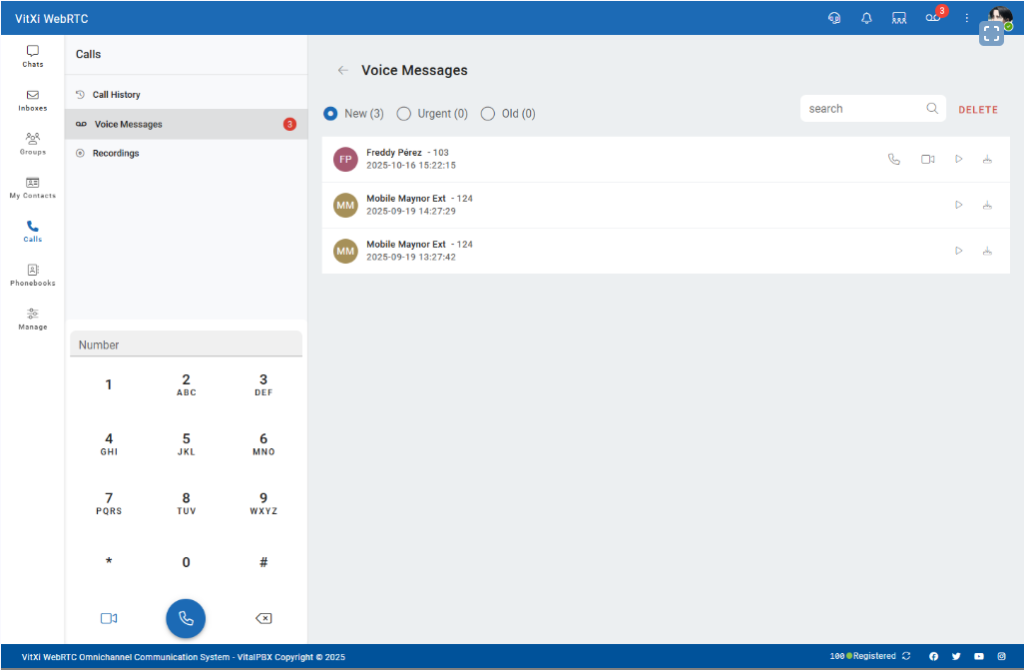
The layout is divided into two main areas:
- Filter Bar — To organize messages by type or status.
- Message List — Displays all voicemail entries with playback and management actions.
Filter Bar
Located at the top of the screen, the filter bar allows you to sort and view messages based on their state:
- New (x) – Displays unread or newly received messages.
- Urgent (x) – Highlights messages marked as urgent.
- Old (x) – Shows previously listened-to messages.
On the right, you’ll find:
- Search Bar — Quickly find voicemails by contact name, number, or date.
- Delete — Remove one or multiple selected messages.
Unread messages are indicated by a red badge counter next to the “Voice Messages” tab in the sidebar.
Message List #
Each voicemail entry shows the following details:
| Field | Description |
|---|---|
| Caller Name / Extension | Identifies who left the message. |
| Date & Time | Indicates when the message was received. |
| Actions | Quick icons for call handling and message management. |
Available Actions #
- Play — Listen to the voicemail directly in the interface.
- Call Back — Return the call to the sender immediately.
- Download — Save the voicemail as an audio file.
Dialpad Access #
As with all sections in the Calls module, the dialpad remains available on the left sidebar.
You can manually enter a number and press the call button to initiate a new call while viewing your messages.